Ownership transfer and offboarding
The week someone leaves is when the business discovers what lived in their My Drive. Transfer first, remove second, suspend last.
Why order matters
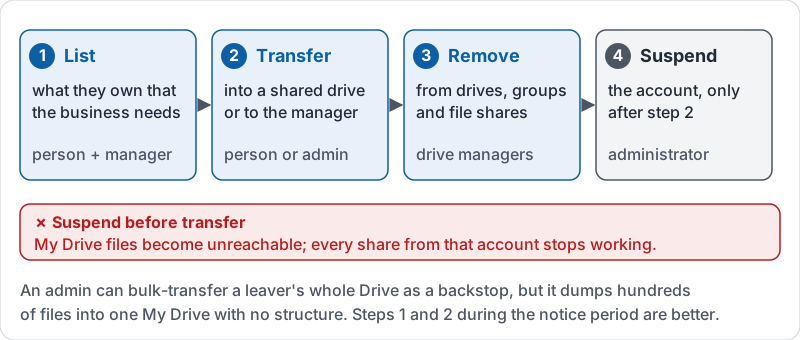
When an account is suspended or deleted, the files it owns in My Drive become unreachable or are deleted with it after a grace period. Anything the team was using through that person’s sharing stops working. The order of offboarding steps is not bureaucracy; it is the difference between a quiet Friday and a lost customer list.
The four steps, in order
| Step | What | Who usually does it |
|---|---|---|
| 1. List | Find what the person owns that the business needs: My Drive files shared with others, templates, folders the team uses | The person and their manager |
| 2. Transfer | Move those files into a shared drive, or transfer ownership to the manager | The person (or an administrator) |
| 3. Remove | Take the person out of shared drives, groups and individual file shares | Shared drive managers, administrator |
| 4. Suspend | Suspend the account only after step 2 is confirmed | Administrator |
An administrator can transfer all of a leaver’s files in one go, which is the backstop. But a bulk transfer dumps hundreds of files into one person’s My Drive with no structure. Steps 1 and 2 done during the notice period are far better.
The four steps in order, and the one order that breaks things.
Transferring a single file
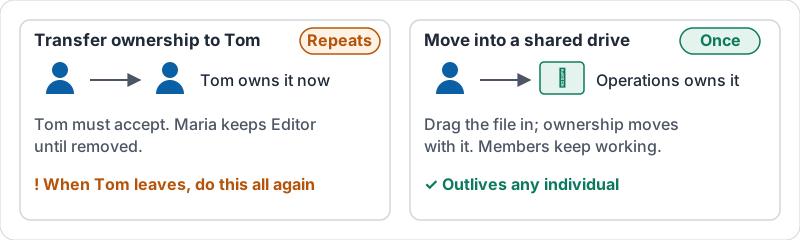
The owner of a file can make another person in the organization the owner. The new owner gets full control; the previous owner usually keeps Editor access until removed. For files that should outlive any individual, prefer moving them into a shared drive over transferring them to another individual, or you will be doing this again when that person leaves.
Transfer to a person, or move to a shared drive.
Do not forget
- Shared with me. Files a leaver was given access to by clients or vendors do not transfer. Ask the external owner to share them with a colleague.
- Links in documents. A procedure that links to a file in the leaver’s My Drive breaks when that file moves. Search for the leaver’s name in key documents.
- Their personal account. If they ever shared work files to a personal gmail address, remove it now.
- Devices. Offline copies on a laptop (lesson 7) remain until the account is signed out or the device is wiped.
Starting well makes leaving easy
Offboarding is painless when onboarding was done right: business files in shared drives from day one, sharing via groups, templates owned by the drive. If a leaver’s My Drive is almost empty of business files, you did it right.
Try it now
Search owner:me in your own Drive and look at the files you share with others. Move anything the business depends on into a shared drive today. Then write down, in your team’s procedures folder, the four steps above as your offboarding checklist.
Remember: list, transfer, remove, suspend. Transfer before suspend, every time.
Checking your progress…