Link settings and over-sharing
Anyone with the link means anyone on the internet. Restricted is the default for a reason.
What the link setting controls
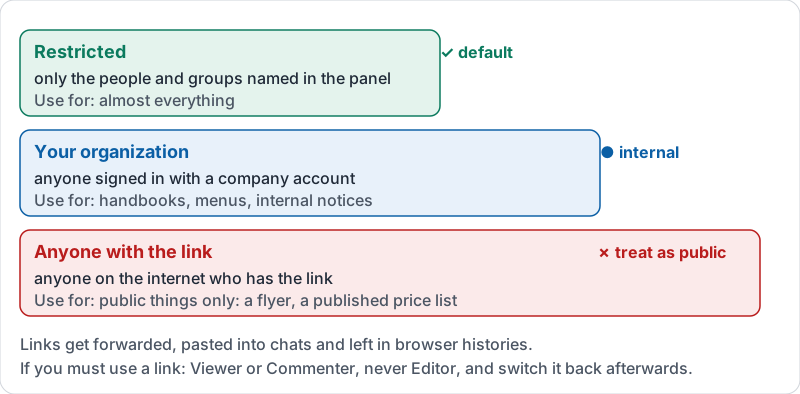
Besides the named people in the sharing panel, every file has a general access setting that decides what happens when someone who is not named opens the link.
| Setting | Who can open the link | Use it for |
|---|---|---|
| Restricted | Only the people and groups listed by name | Almost everything |
| Your organization (anyone at yourcompany) | Anyone signed in with a company account | Handbooks, menus, internal notices |
| Anyone with the link | Anyone on the internet who has the link, signed in or not | Public things only: a flyer, a published price list |
“Anyone with the link” is not a secret. Links get forwarded, pasted into chats, left in browser histories and indexed by other tools. Treat it as public.
The three settings and how far each one reaches.
The over-sharing pattern
Over-sharing almost never happens on purpose. It happens like this:
- Someone needs to send a file to a client quickly. The client’s address is not handy, so they switch the link to “Anyone with the link” as Editor and paste the link.
- The file is inside a folder. Or the folder itself gets the link setting, so every file added later inherits it.
- Nobody switches it back.
Six months later the payroll folder is open to the internet. The fix is a habit: share with a named person, and if you must use a link, set it to Viewer or Commenter, not Editor, and switch it back when the job is done.
Reading a sharing panel
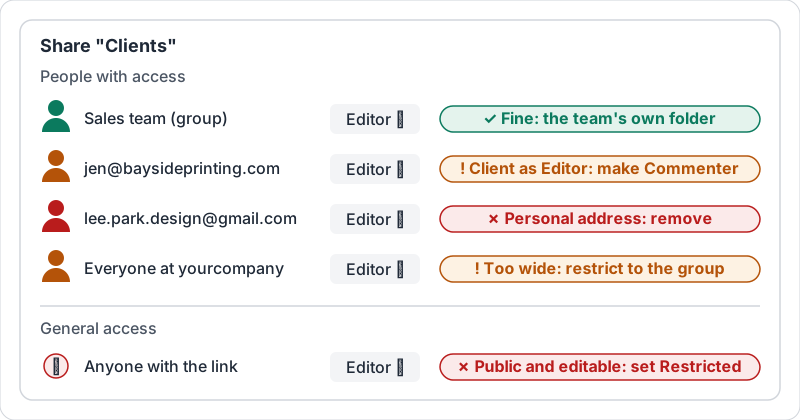
When you review a folder, you are looking for four things:
| Entry | Problem |
|---|---|
| “Anyone with the link” on anything confidential | Public access. Set to Restricted |
| A personal address (gmail, outlook, yahoo) | A former contractor or someone’s personal account. Remove or confirm |
| A client or vendor as Editor | Too much access. Commenter or Viewer |
| “Everyone at yourcompany” as Editor on HR or Finance | The whole company can change payroll. Restrict to the group that needs it |
A sharing panel with all four problems in it.
Expiring access
For a contractor or an auditor, set an expiry date on their access when you grant it. You will not remember to remove it later; the expiry remembers for you.
Try it now
Search your Drive for files you own that are shared with anyone with the link (Drive’s search filters include a “shared with” option on desktop). Set each one back to Restricted unless it is genuinely public, and share it with the named people instead.
Remember: Restricted by default. Anyone with the link is public, and Anyone with the link as Editor is public and editable.
Checking your progress…