Lists, tables and page setup
Real lists, tables used only for data, and page settings decided once at the start.
Use real lists
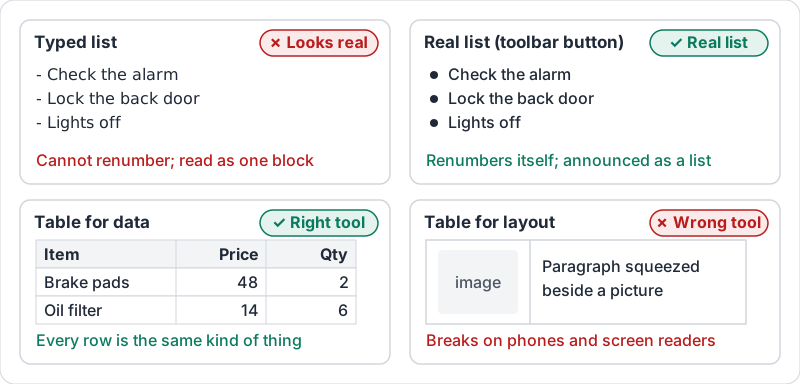
A list typed with dashes or “1)” at the start of each line looks like a list but is not one. Docs cannot renumber it when you insert an item, and a screen reader reads it as one long paragraph.
Use the bulleted or numbered list buttons. Then:
- Use numbered lists when order matters (steps, rankings).
- Use bulleted lists when it does not (options, reminders).
- Keep each item short. If an item needs two sentences, it probably wants to be a paragraph under a heading.
Tables are for data, not layout
A table is right when every row is the same kind of thing and every column is the same kind of value: prices, dates, names, yes or no.
A table is wrong when you are using it to put a picture beside a paragraph or to indent something. That breaks on a phone and confuses screen readers. Use alignment, columns or simple image placement instead.
| Habit | Why |
|---|---|
| First row holds the column names | Readers and assistive tools know what each column means |
| Pin the header row so it repeats on each page | Long tables stay readable when printed |
| Keep cells short | Phones show narrow columns |
| Never merge cells for decoration | Merged cells break sorting and screen readers |
The four cases side by side.
Decide page setup once
Margins, orientation, page size and whether the document has pages at all are document-level choices. Make them before you format anything else, because changing them later reflows every page.
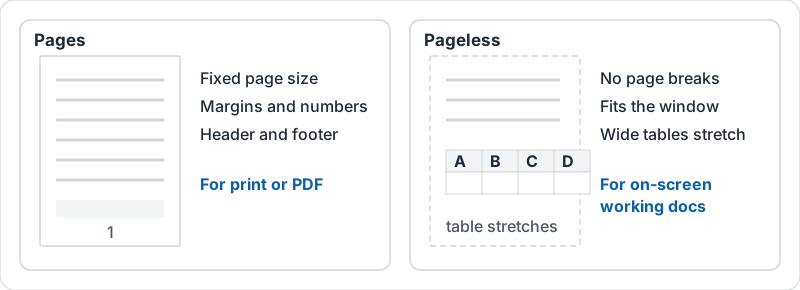
- Pages mode is for anything that will be printed or exported to PDF.
- Pageless mode is for working documents read on screen; wide tables and images stretch to fit the window.
Headers and footers belong in the header and footer areas, not typed at the top of each page. Page numbers should be inserted as a field so they count themselves.
Pages and Pageless compared.
Try it now
Find a document with a hand-typed list (dashes or numbers typed in). Select those lines and turn them into a real list with the toolbar button. If it is a numbered list, insert a new item in the middle and watch it renumber.
Remember: lists and tables are structure, not decoration. If a reader on a phone would struggle, it is the wrong tool.
Checking your progress…