Headings and the outline
Heading levels are a map of the document. Keep them in order and Docs builds the navigation for you.
Headings are levels, not sizes
Heading 1, Heading 2 and Heading 3 are not “big, medium and small”. They are levels in an outline, like chapters, sections and sub-sections in a manual.
A reader (and a screen reader) expects:
- One Title.
- Heading 1 for each major part.
- Heading 2 only underneath a Heading 1.
- Heading 3 only underneath a Heading 2.
Do not skip a level because you like the look of the smaller one. If Heading 3 looks better than Heading 2, change the Heading 2 style (lesson 1), not the level.
| Document | Heading 1 | Heading 2 | Heading 3 |
|---|---|---|---|
| Employee handbook | Time off | Vacation | Requesting vacation |
| Project proposal | Scope | What is included | Deliverables |
| Standard operating procedure | Opening the store | Alarm and lights | If the alarm does not disarm |
The outline panel shows the levels as indents, which makes a skipped level easy to spot.
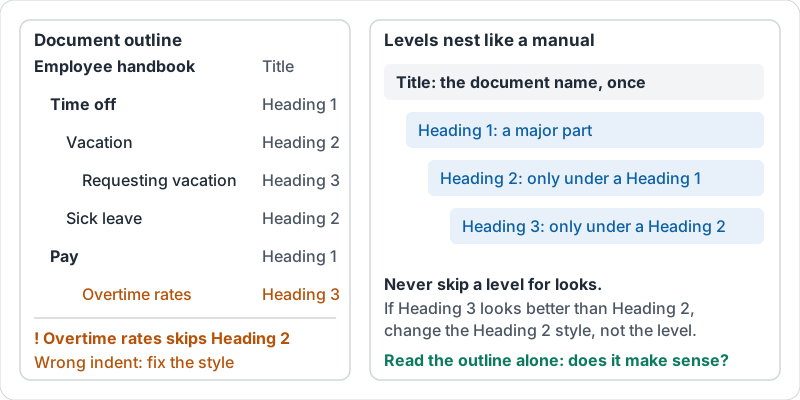
The outline panel
Once headings are real headings, Docs shows an outline down the side. Tap a line in it and the document jumps there. On a long document this saves minutes of scrolling, and it is the fastest way to spot a heading at the wrong level: it will sit at the wrong indent in the list.
The outline is also a quick quality check. Read the outline on its own. If it makes sense without the body text, the structure is good.
A table of contents that updates itself
A table of contents is built from headings. Insert it once near the top. When you add or rename sections, refresh it and the entries and page numbers update. Never type a table of contents by hand; it is out of date the first time anyone edits.
You can also link straight to a heading. Share the link and the reader lands on that section, which beats “see the part about refunds”.
A short walkthrough of inserting and refreshing the table of contents.
Try it now
Open a document longer than one page. Show the outline. If it is empty or has a line that should not be a heading, fix the styles until the outline reads like a sensible table of contents. Then insert a table of contents under the title.
Remember: read the outline before you read the document. If the outline is confusing, the document is confusing.
Checking your progress…