The meeting lab
A walkthrough of the lab: schedule a meeting with an agenda attached and shared at the right level, then spot and fix an over-shared file in a sharing panel.
What the lab is
The assessment for this course ends with two connected tasks:
- Schedule a meeting with an agenda. You put the steps in order and choose the sharing level for the agenda doc so that guests can contribute and nobody else can see it.
- Read sharing panels. You are shown simulated Share dialogs and asked to tap the entry that over-shares a file, or the access level that fits a described need.
This lesson walks through both with a realistic example. The lab uses different names, files and panels, so learn the reasoning.
Part one: the meeting
Scenario: you need Maria (owner), Darnell (GM) and Renee from Gulf Coast Supply (external) to decide spring order quantities on Thursday.
| Step | Do | Why this order |
|---|---|---|
| 1 | Create the agenda doc: purpose and the three decisions needed | You cannot attach what does not exist |
| 2 | Create the Calendar event with the title “Decide spring order quantities” and a Meet link | A clear title gets prepared guests |
| 3 | Attach the doc; when Calendar asks to share it with guests, say yes and choose Commenter | Guests can add items and questions; nobody can rewrite the agenda or re-share it |
| 4 | Check guest permissions: Modify event off, Invite others off (external guest), See guest list on | A vendor should not be able to add people to an internal decision |
| 5 | Send, then watch for the external-sharing warning and confirm Renee’s address is exactly @gulfcoastsupply.com |
One hyphen in the wrong place sends the agenda to a stranger |
Why Commenter and not Editor? Everyone can contribute; nobody can delete the agenda or change sharing. Why not Viewer? Guests could not add items, and you would spend the first ten minutes collecting them. Why not “Anyone with the link”? Renee could forward the link to anyone, and the doc contains your order volumes.
Part two: the sharing panels
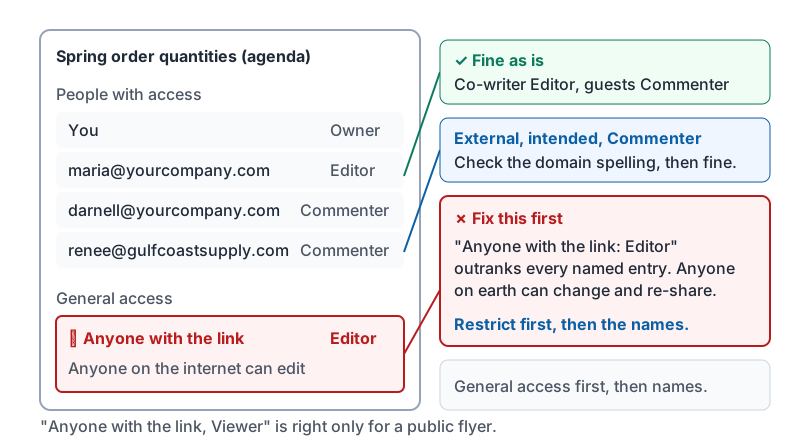
The lab shows panels like this one for Spring order quantities (agenda):
| Entry | Access |
|---|---|
| You | Owner |
maria@yourcompany.com |
Editor |
darnell@yourcompany.com |
Commenter |
renee@gulfcoastsupply.com |
Commenter |
| Anyone with the link | Editor |
Which entry must be fixed? Anyone with the link: Editor. It outranks every other problem in a panel because it means anyone on the internet can change and re-share the file. Fix it first by switching General access to Restricted; then look at the named people.
The same panel as the lab shows it, with the entry to tap marked.
Other panels you may see, and the tell in each:
| Panel detail | Problem |
|---|---|
former.employee@yourcompany.com as Editor |
Someone who left still has access |
renee.walsh.personal@gmail.com as Commenter when the vendor’s work address is already listed |
An unfamiliar personal address, possibly a mistaken autocomplete |
Anyone in yourcompany.com as Editor on the payroll sheet |
The whole company can edit payroll |
| A customer listed as Editor on a proposal | Far more than they need; Viewer or Commenter |
Some lab questions give you a need instead: “Renee needs to add questions to the agenda before Thursday.” Pick Commenter. “The accountant needs to read last year’s statements.” Pick Viewer. “Darnell will co-write the agenda with you.” Pick Editor. “A flyer for the public.” That is the only time Anyone with the link, Viewer is correct.
Common mistakes
| Mistake | Fix |
|---|---|
| Tapping a named Editor when “Anyone with the link” is also Editor | Link settings outrank names. Read General access first. |
| Giving guests Editor on the agenda by default | Commenter lets them contribute without rewriting or re-sharing |
| Ignoring the external warning because you recognize the first name | Read the whole domain. Autocomplete picks addresses you did not mean. |
| Attaching the doc without accepting the share prompt | Guests get a request-access screen at 2:59 pm |
| Choosing “Anyone with the link” to make the warning go away | That is the one option worse than all the others |
How the lab is graded
Ordering questions check the sequence. Sharing panel questions check that you tap the single worst entry, or the single right level. There is one correct answer each time; “close enough” does not score. Pass is 80 percent, distinction 95, and retakes use fresh panels.
Try it now
Open the sharing panel of a doc you own and read it in the lab order: General access first, then each name and level. Then take the assessment.
Remember: agenda first, event second, attach and share as Commenter, set guest permissions, read the warning. In any panel, “Anyone with the link” outranks every name. Lowest level that does the job.
Checking your progress…