Link settings and external sharing
Links are convenient and dangerous in equal measure. Learn what each link setting really does, how to share with people outside the company safely, and what to do when Workspace warns you.
What a link actually is
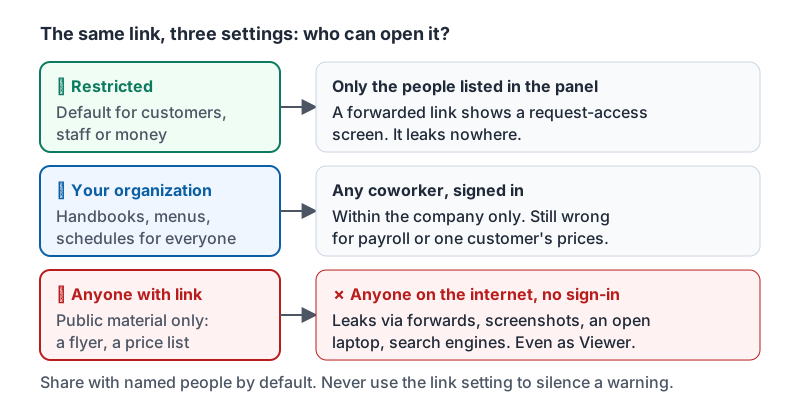
Copying a file’s link does nothing by itself. Who can open that link depends entirely on the General access setting. The same link can be useless to a stranger (Restricted) or an open door (Anyone with the link). People get this backwards: they think “I only sent the link to one person” when the setting says anyone.
| Setting | Who can open the link | Where it can leak |
|---|---|---|
| Restricted | Only people already listed in the panel | Nowhere. A forwarded link just shows a request-access screen. |
| Anyone in your organization | Any coworker, signed in | Within the company only; fine for internal material |
| Anyone with the link | Anyone, anywhere, no sign-in | Forwarded emails, chat screenshots, a laptop left open, a search engine if posted publicly |
So the rule: share with named people or groups by default. Use “Anyone with the link” only when you would be comfortable with the file on your public website.
The same copied link under each of the three settings.
Why “Anyone with the link, Viewer” still matters
Even as Viewer, a link-shared file can be downloaded, copied and sent on by anyone who gets it. A customer price list shared this way with one customer can end up with a competitor through one forward. For one-off external sharing, add the person’s email as a Viewer instead. It takes ten more seconds and the link is worthless to anyone else.
Sharing with people outside the company
Customers, accountants, suppliers and contractors need files too. Do it deliberately:
- Share with their specific address, not a link.
- Choose the lowest level (usually Viewer or Commenter).
- Turn off download for anything you would not want copied, and turn off re-sharing for editors.
- Set an expiry for one-off access, such as a contractor’s 30 days.
- Remove access when the job is done. Put a note in your calendar if you will forget.
If the outside person does not have a Google account, Workspace can send them a one-time code to open the file (your admin controls whether this is allowed). That is better than switching the file to “Anyone with the link”.
The external-sharing warning
When you add someone outside your organization, Workspace shows a warning along the lines of “You’re sharing with people outside your organization.” Some companies also flag certain external domains or block external sharing on specific drives. The warning is not a bug and not a nag. It is the moment to check three things:
- Is the address exactly right?
renee@gulfcoastsupply.comandrenee@gulfcoast-supply.comare different companies, and autocomplete does not know which one you mean. - Is this person someone the business intends to share with? A client, a vendor, your accountant: yes. A personal address of a coworker: no, use their work account.
- Is the level the lowest that works? External people rarely need Editor.
If all three are fine, continue. If the answer to any is no, cancel. Never switch to “Anyone with the link” to make the warning go away; that is the one choice that is worse than any of the alternatives.
Fixing an over-shared file
When you find a file shared more widely than it should be:
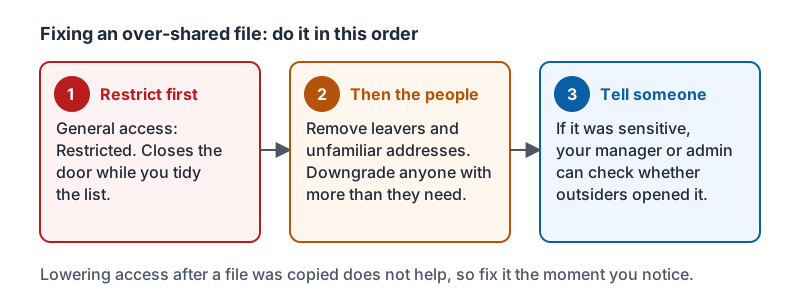
- Change General access to Restricted first. This closes the door for anyone not listed.
- Then go through the people list and remove or downgrade anyone who does not need access.
- If the file was sensitive, tell your manager or admin; they can check whether anyone outside opened it.
Do it in that order. Restricting first stops new people from opening the file while you tidy the list.
The three steps in order.
Requests for access
When someone clicks a Restricted link, the owner gets a request. Before approving, look at who is asking and what level they want. It is fine to grant Viewer when they asked for Editor. It is fine to say no to an address you do not recognize, and to ask a coworker in person if a request from “them” came from an unfamiliar address.
Try it now
Search your Drive for any file you own that is set to “Anyone with the link”. For each one, ask whether it belongs on your public website. If not, switch it to Restricted and add the specific people who need it. Then share one real file with an outside person by their address, as Viewer, with an expiry date.
Remember: the link is only as safe as the General access setting. Share with named people, lowest level, expiry for outsiders, and never switch to “Anyone with the link” to silence a warning.
Checking your progress…