The Gemini app versus Gemini in Workspace
Gemini shows up in two places that look alike and behave differently. Know which one you are in and what each is for.
Two front doors
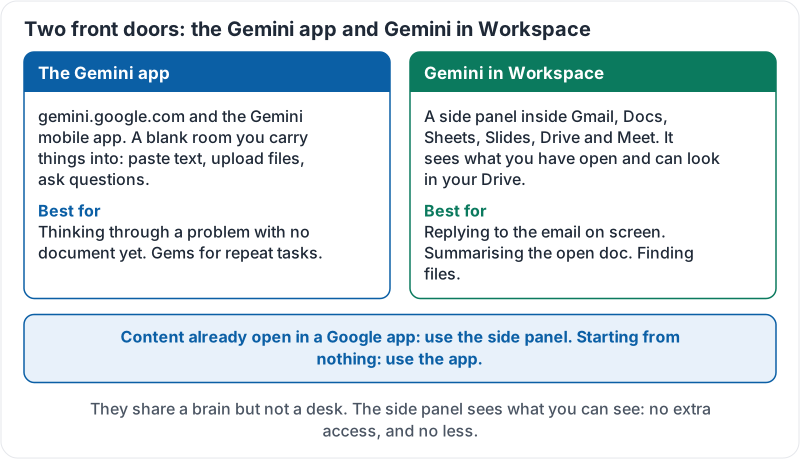
Google puts Gemini in two places:
- The Gemini app. A standalone chat at gemini.google.com and in the Gemini mobile app. You bring the content to it: paste text, upload files, ask questions.
- Gemini in Workspace. A side panel inside Gmail, Docs, Sheets, Slides, Drive and Meet. It already sees the email, document or spreadsheet you have open, and it can look things up in your Drive.
They share a brain but not a desk. The app is a blank room you carry things into. The side panel is an assistant sitting next to the thing you are already working on.
The two doors side by side:
Which one for which job
| Task | Better choice | Why |
|---|---|---|
| Draft a reply to the email on screen | Gemini in Gmail | It already has the thread; no pasting, no privacy slip |
| Summarise a long document you have open | Gemini in Docs | Same reason, and the summary can drop straight into the doc |
| “Which of my files mentions the Henderson contract?” | Gemini in Drive | It can search your Drive with your permissions |
| Make a formula or spot a pattern in a sheet | Gemini in Sheets | It sees the columns and can insert the result |
| Think through a problem with no document yet | Gemini app | Blank page, longer conversation, more room |
| Build a reusable helper for a repeat task | Gemini app (Gems, lesson 6) | Gems live in the app |
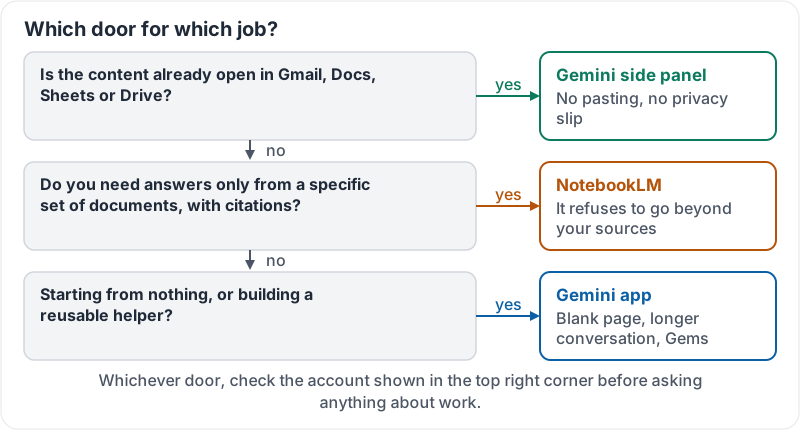
| Get answers only from a specific set of documents, with citations | NotebookLM (lesson 7) | It refuses to go beyond the sources you give it |
A useful rule: if the content is already open in a Google app, use the side panel. If you are starting from nothing, use the app.
Three questions that pick the door:
What the side panel can see
Gemini in Workspace sees what you can see. It does not get extra access. If you cannot open a file in Drive, neither can Gemini when it is helping you. That also means the reverse: if you have access to a sensitive folder, Gemini can pull from it when you ask. Lesson 4 covers how to check what it used.
The account matters more than the door
Both doors behave differently depending on whether you are signed in with a personal Google account (the one with your own Gmail address) or a Workspace account (the one your company set up on its own domain). Lesson 2 covers that difference in detail; for now, notice which account is shown in the top right corner before you ask anything about work.
Google Workspace’s own introduction to using Gemini at work covers the app, the side panel and NotebookLM in one pass:
Try it now
Open one work email in Gmail and look for the Gemini star. Then open the Gemini app in another tab. Note which account each shows in the top right. For the email, ask the side panel to summarise it. Notice that you did not have to paste anything.
Remember: content already open in a Google app, use the side panel. Starting from nothing, use the app. Specific documents with citations, use NotebookLM. And always check which account is in the top right.
Checking your progress…