Images and slides
ChatGPT can make pictures and slide decks fast. Know what they are good for, where the text goes wrong, and whose rights you might be stepping on.
What image generation is good for
ChatGPT can create images from a description and edit images you upload. At a small business this is useful for:
- A quick mock-up to show a designer or printer what you mean.
- Placeholder art for an internal document or training slide.
- Simple illustrations for a staff notice, a menu board draft or a social post you will review.
- Cleaning up a product photo: removing a background, adjusting a crop.
It is less reliable for anything that must be exactly right: your logo, a map, a diagram with labels, a product that must look like your actual product.
Where images go wrong
| Problem | What happens | What to do |
|---|---|---|
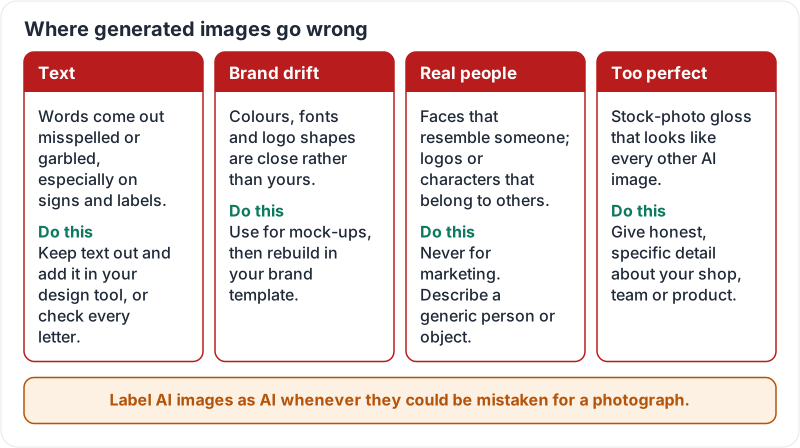
| Text inside the image | Words come out misspelled or garbled, especially on signs and labels | Keep text out of the image and add it in your design tool, or check every letter |
| Brand drift | Colours, fonts and logo shapes are “close” rather than yours | Use generated images for mock-ups, then rebuild in your brand template |
| Real people and real brands | Faces that resemble someone, logos or characters that belong to someone else | Never use for marketing. Describe a generic person or object instead |
| Too perfect | Stock-photo gloss that looks like every other AI image | Give specific, honest detail about your actual shop, team or product |
Rights: whose picture is it?
Three rules keep you out of trouble:
- Do not generate other companies’ logos, characters or products for anything the public sees.
- Do not generate images of real people without their consent, including staff and customers.
- Label AI images as AI when they could be mistaken for a photograph. A generated “photo” of a finished kitchen on your website is a complaint waiting to happen.
Your company AI policy (lesson 9) may add rules about which images need a manager’s sign-off.
The four ways images go wrong, and the fix for each:
Slides: a fast first draft
ChatGPT can turn a brief or a document into a slide outline and, on many plans, into a downloadable presentation file. Treat it like any other draft:
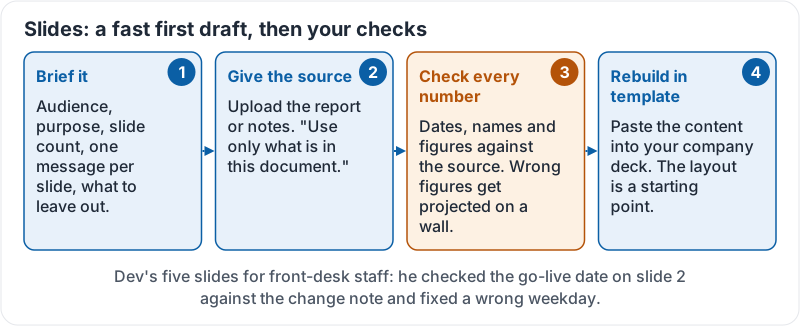
- Brief it well. Audience, purpose, number of slides, one key message per slide, what to leave out.
- Give it the source. Upload the report or notes the slides should be based on. Say “use only what is in this document”.
- Check every number and name. Slides are where wrong figures get projected onto a wall in front of the boss.
- Rebuild in your template. The generated layout is a starting point. Paste the content into your company deck.
The slides workflow in four steps:
A step-by-step walkthrough of generating and editing images, from a well-known software educator:
A worked example
Dev needs five slides for Monday’s staff meeting about the new booking system. He uploads the two-page change note and asks: “Five slides for front-desk staff who are nervous about the change. One message per slide, plain words, use only what is in this document. Slide 5 is what to do if the system is down.” He checks the go-live date on slide 2 against the note, fixes a wrong weekday, and pastes the content into the company template.
Try it now
Ask ChatGPT for a mock-up image of a sign for your business with your business name on it. Count the spelling mistakes. Then ask for a three-slide outline of something you need to explain to a colleague, based on a document you upload.
Remember: images are for mock-ups and placeholders; check every letter, avoid real people and other people’s brands, and label anything that could pass for a photo. Slides are a draft to check and rebuild in your template.
Checking your progress…